


Wait, You Can Add Colored Dots to Google Classroom? Here's How!
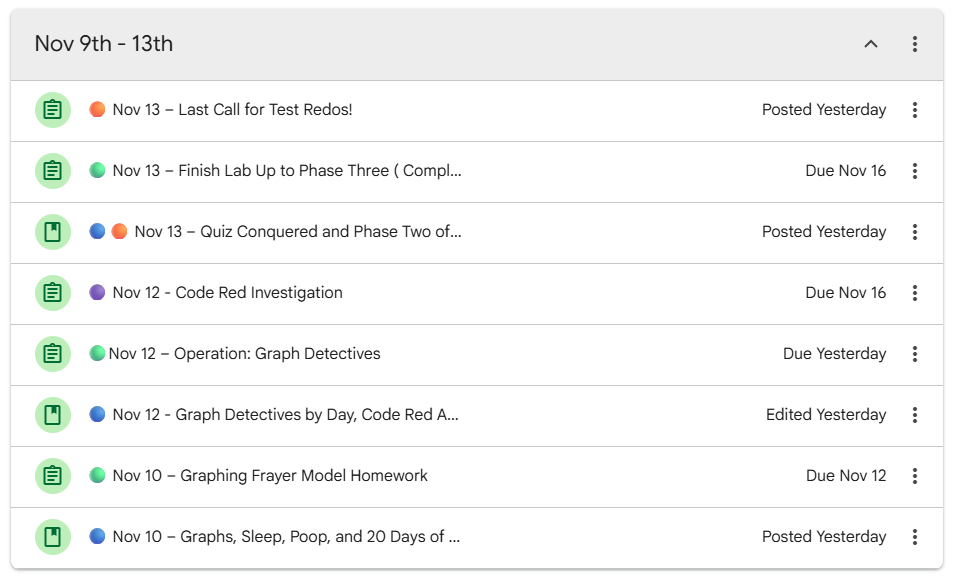
I've been on a mission lately to turn my Google Classroom into a one-stop shop for my students. With more and more kids missing class for appointments, sports, travel, and everything in between, I've been trying to find a better way to keep everyone on track.
My goal was pretty simple: I wanted students to be able to go into Google Classroom, find the day they missed, click on it, and have everything they needed right there. Notes, assignments, what we covered, what they needed to hand in. All of it.
I had been using OneNote, which, quite frankly, I loved. But posting something in Google Classroom, directing students to OneNote, and expecting them to take that extra step to find what they needed just wasn't working. And as much as I might wish my ninth graders would happily navigate between platforms to track down their missing work, I also live in the real world. Sometimes you just have to meet them where they are.
So I started searching for ways to make Google Classroom more organized, easier to navigate, and a little more visually useful. And wouldn't you know it, somewhere in all that searching, I stumbled across this little gem of advice.
Press Windows + period (.) on your keyboard.
Seriously. Try it. A searchable emoji menu pops up, and you can insert emojis directly into your Google Classroom assignment titles. Colored circles, check marks, symbols—you name it.
And suddenly I had a whole new idea for organizing my Google Classroom Classwork page: color-code the assignment titles with emojis.
First, Here's the Shortcut
Want to add emojis to your Google Classroom assignment titles? If you're working on a Windows computer, try this:
Open Google Classroom and create or edit an assignment or material.
Click inside the title field.
Press Windows key + period (.) on your keyboard.
A searchable emoji menu will appear.
Type something like “circle” into the search.
Choose your emoji, and it will appear in your title.
That's it!
One important detail: this is actually a Windows keyboard shortcut, not something specific to Google Classroom. You can use it in other places where you're typing, too.
But Google Classroom is where I immediately saw its potential.
My Google Classroom Now Has a Color-Coding System
I started organizing my Classwork page into weekly topics, labeled with the dates for that week. Within each week, I arrange the materials in the order we worked on them. I also put the actual class date at the beginning of each title.
Then came the colored dots.
Now, when students scan the Classwork page, the colors give them a quick visual clue about the kind of work they're looking at—before they even open a post.
I made a color key and posted it right in Google Classroom so students can reference it whenever they need to. Here's exactly what they see:

I'm not suggesting my color choices are magical. They're simply categories that make sense for how my classroom operates. And the best part is that I didn't need to learn an entirely new program or create some elaborate organizational masterpiece. I just started adding little colored circles to titles I was already writing.
The Dates Are Just as Important
Here's an example of what some of my assignments look like:
🟢 Nov 12 – Operation: Graph Detectives
🟣 Nov 12 – Code Red Investigation
🔵 Nov 10 – Graphs, Sleep, Poop, and 20 Days of...
🟠 Nov 13 – Last Call for Test Redos!
The date tells students when we worked on something in class. The color tells them what kind of material it is. And the title tells them what they're actually looking for. Three little pieces of information before they even open the assignment. This is especially useful when someone has been absent and needs to figure out where to begin.
I still have to provide clear directions and make sure the right materials are attached. A colored circle certainly isn't going to do that work for me. But it does give the Classwork page a little more structure.
Want to Try It? Start Small.
You don't have to reorganize your entire Google Classroom this afternoon. Maybe you use one color for assignments students need to turn in and another for notes or reference materials. Maybe labs get their own symbol. Maybe you start putting dates in front of titles so students can find work from a particular day. Whatever you choose, keep it consistent.
I'd also recommend keeping descriptive assignment titles. The colors should be an extra visual clue, not the only way students can identify something. After all, students need to be able to find their work even if they can't distinguish the colors.
And if you're already using weekly topics in Google Classroom, you might be surprised how much more organized everything feels when you combine them with dates and a few well-chosen symbols.
So, my teacher friends, go forth and color-code that Google Classroom of yours!
It's almost like the teacher version of those adult coloring therapy books. Fewer flowers and mandalas, more Google Classroom assignments. But oddly satisfying.


Comments